Publish a Page
Publish a Page
Support article: Publish Pages
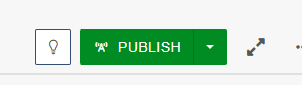
- Click on PUBLISH
- Always add a version description
Note: If due to ticket submission, the ticket number is a valid description and helps with tracking.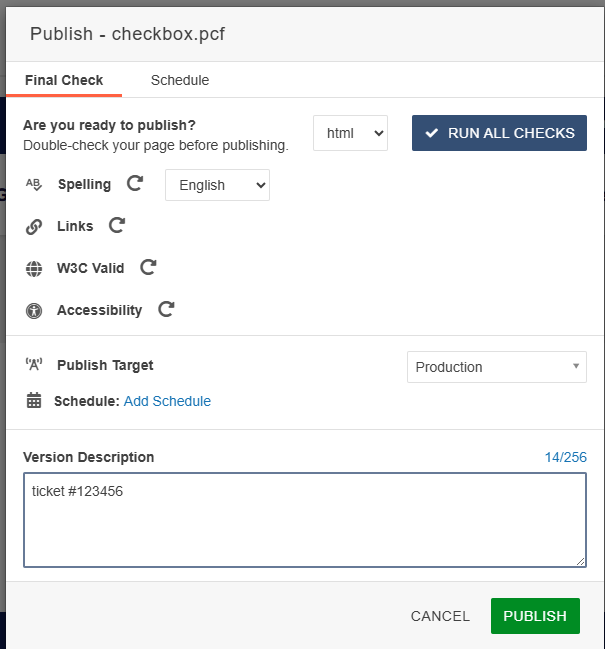
- Click on PUBLISH
Schedule a Publish
Support article: Scheduled Publish
Description: You can schedule a file to be published at a later date. This can be useful for preparing content in advance of a specific date or deadline.
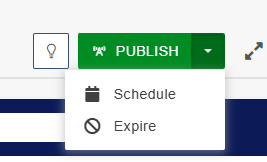
- Click on Schedule
- Click the Schedule tab and Select Date and Time
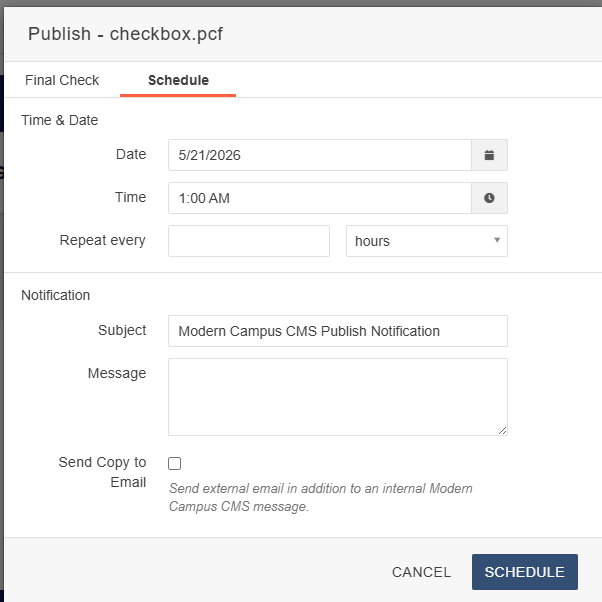
- Click on SCHEDULE
- Page in edit mode now displays

Expire
Support article: Expire
Description: You can schedule a file to expire at a specific date and time. An expired file is either recycled, replaced with another file, or has a redirect created in its place, depending on what you decide.
- Click on Expire
- Click the Recycle tab and Select Date and Time
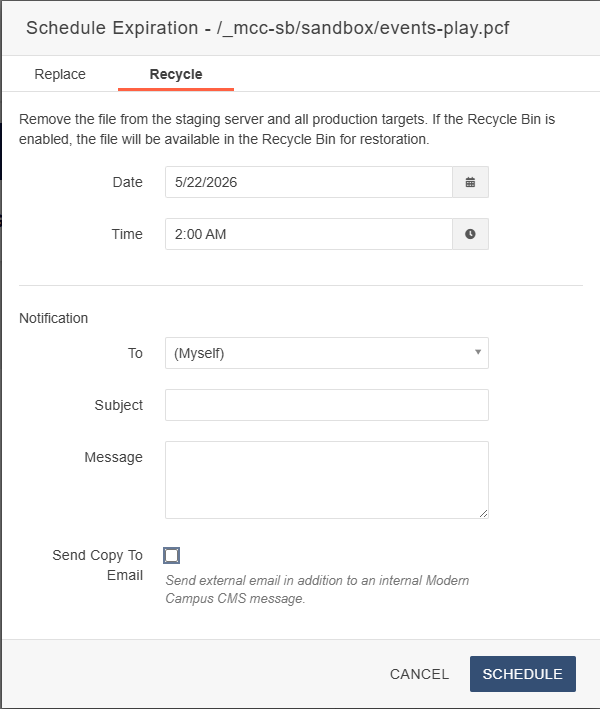
- Click on SCHEDULE
- Page in edit mode now displays
